
In this Article:
- What You'll Need
- Introduction to Reports
- Climber Insights Report
- Assignment Completion by Group Report
- Climber Activity Report
- Ladder Time by Climber Report
What You’ll Need:
|
Introduction to Reports
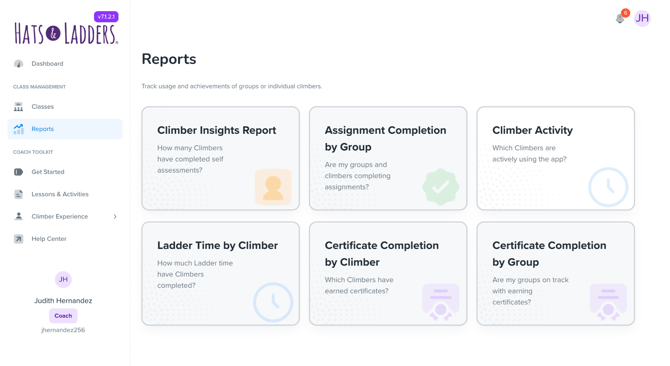
Reports in Hats & Ladders enable Administrators, Staff and Coaches to track climber activity and progress in different areas of the platform. Each report provides visual summaries and detailed tables, making it easy to spot class and group-level trends while also drilling down into individual activity.
Tabs
All reports include tabs at the top of the page, allowing users to select how they would like the data to be presented. When a tab is selected, the interface automatically updates to display the new view or data category (for example, Activity by Group or Activity by Climber).
.gif?width=486&height=364&name=Untitled%20design%20(5).gif)
Filters
Clicking Controls opens a filter panel where you can narrow the results by relevant categories such as District, Site, Group, or Climber.
.gif?width=487&height=194&name=Untitled%20design%20(6).gif)
Sort and Export Reports
Each module within a report includes a menu icon (︙) in the top-right corner. Hover over the module and click this icon to access additional options:
.gif?width=552&height=219&name=Untitled%20design%20(7).gif)
- Sort – Choose a value in the table by which you would like to organize the data.
-
Export to CSV/Excel – Download the data from a module for use outside of the Hats & Ladders platform.
Climber Insights Reports
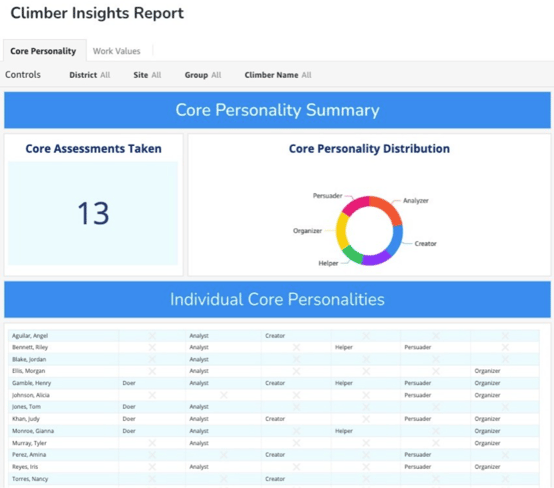
The Climber Insights Report gives Coaches and Staff an overview of climbers’ strengths and values from two Career Climbs: Discover Your Core and Discover Your Work Values.
This report summarizes and organizes that information in two easy-to-navigate views.
Explore and access Discover Your Core and Discover Your Values as a climber would.
This report contains two tabs: Core Personality and Work Values.
Summary View
- Assessments Taken: The total number of completed assessments.
- Distribution Chart: A donut or bar chart showing what percentage of climbers fall into each core personality or work value type.
Individual View
- In the Individual View, coaches see a table listing their climbers and core personality types. An X indicates a climber is not associated with that type.
When to Use This Report
- Group Insights: Identify the most common personality traits or work values among your climbers to inform in-class activities and projects.
- Individual Coaching: Use the table view to tailor conversations with individual climbers around their identified strengths and preferences.
- Program Oversight: Track how many assessments have been completed to ensure strong participation across sites or groups.
Assignment Completion by Group Report
The Assignment Completion by Group Report helps Coaches and Staff monitor how climbers are progressing with their assignments. This report takes you directly to your Groups, where you can view completion data from two perspectives: Assignment Completion by Group and Assignment Completion by Climber.
For more detailed guidance on tracking assignment completion, see our article: Tracking Assignment Completion.
Climber Activity Report
The Climber Activity Report provides Coaches and Staff with an overview of which climbers are actively engaging in the Hats & Ladders platform. Activity in this report is defined as the completion of at least one ladder or activity.
This report contains two tabs: Activity by Group and Activity by Climber.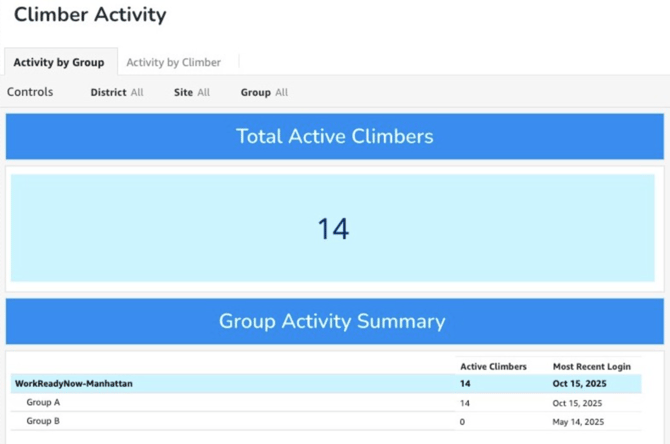
Activity by Group
This tab gives you a top-level overview of activity across your assigned climbers.
- Total Active Climbers: Shows the overall number of climbers who have completed at least one ladder or activity.
- Group Table: Each row represents a group/class.
- Active Climbers: Displays how many climbers in that group are active.
- Last Login: Shows the most recent date any climber from that group logged into the platform.
Use this view to quickly identify which groups are highly engaged and which may need additional outreach.
Activity by Climber
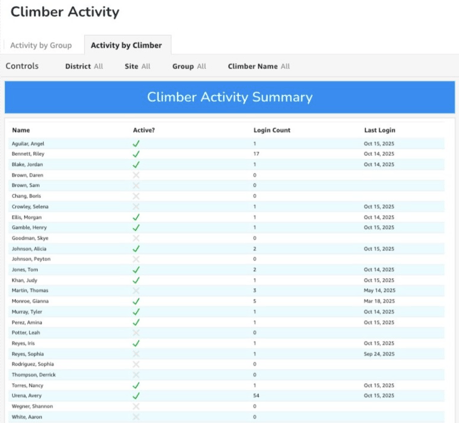
This tab provides a detailed list of all Climbers.
- Active Status: Displays whether each climber is active or inactive.
- Login Count: Shows the total number of time the climber has logged in to the platform
- Last Login: Shows the exact date each climber last accessed the platform.
Activity is measured by the completion of at least one ladder. If a climber has logged in but has not completed a ladder, they will not be marked active, but a date will still appear under Last Login.
Coach Activity Report (Administrators/Staff Only)
The Coach Activity Report helps program administrators monitor coach engagement across sites and groups to ensure coaches are logging in and supporting their climbers effectively.
There are two tabs in this report: Activity by Group and Activity by Coach.
Activity by Group
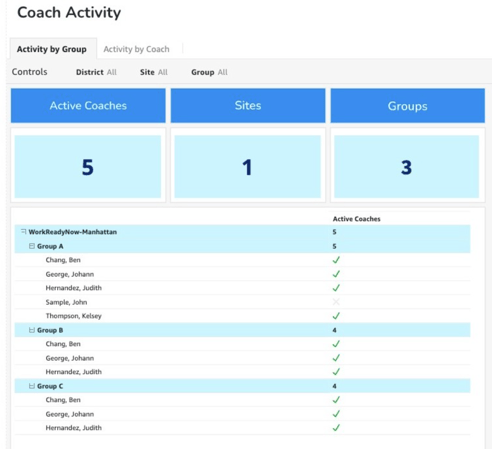
This tab provides a high-level summary of coach engagement across all sites and groups. Administrators will see:
-
Active Coaches – Displays the total number of active coaches who have accessed the platform.
-
Sites – Shows the number of sites with at least one active coach.
-
Groups – Indicates how many groups have at least one active coach.
Below the summary modules is a table listing each Site.
-
Next to each site name is the total number of active coaches within that site.
-
Clicking the [+] next to a site name expands the table to display its Groups along with the total number of active coaches in each. Selecting the [+] again reveals the individual coaches assigned to that group and indicates whether each coach is active.
.gif?width=463&height=123&name=Untitled%20design%20(8).gif)
Activity by Coach
This tab provides a detailed breakdown of coach activity across all sites.
-
At the top of the page, a donut chart displays the percentage of active coaches compared to the total number of coach accounts.
-
Beneath the chart, a table lists all existing coach accounts.
Use this view to monitor individual coach engagement, verify account activity, and identify who may need reminders or additional onboarding support.
Note: Activity in this report is measured by whether a coach has logged into the Hats & Ladders platform at least once. A coach who has not yet logged in will be marked as inactive.
Ladder Time by Climber Report
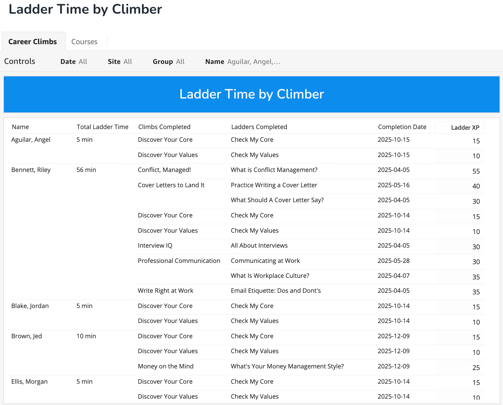
The Ladder Time by Climber Report allows Coaches and Staff to view how much time climbers have spent completing activities in the Hats & Ladders platform.
What is Ladder Time?
Every ladder activity in the Hats & Ladder platform has an estimated time that corresponds to its XP value.
5 XP corresponds to 1 Minute
300 XP corresponds to 1 Hour
Total Ladder Time is calculated by adding the estimated time for each completed ladder over a given time period.
The Ladder Time By Climber Report has two tabs:
- Career Climbs: Only shows ladder data for activities under Career Climbs
- Courses: Only shows ladder data for activities under Courses
Using the Date Filter
If Coaches have requested specific courses for climbers to complete, the date filter can be used to track engagement within a targeted window of time. This feature helps Coaches and Staff measure how much ladder time and XP were earned during the course period.
To use this feature:
-
Select a date range that aligns with when climbers were expected to complete their assigned courses.
-
Review the Ladder Time and XP columns for the climber(s) in question to see how much activity occurred within that timeframe.
This view provides a clear summary of how actively climbers participated in assigned coursework and can help Coaches identify where additional encouragement or support may be needed.
Breakdown by Ladder
Use this report to review completed ladders and credited Career Climbs for each climber. The report only reflects completed work and does not show ladders that are still incomplete. Completed Career Climbs and their associated ladders appear next to the climber’s total earned time
Next Steps
→ Want to create assignments for your Climbers? Read our article Create Assignments.