In This Article
Instructions翻译设置
Traducciones
Translations
Climbers can access language translation features in two ways, depending on their browser.
With Chrome:
Instructions:
- Log in to your Hats & Ladders account.
- Right-click anywhere on the screen and select "Translate to [Your Language]".
- If the translation does not appear in your preferred language:
- Look for the translation icon in the search bar.
- Click the three-dot menu (⋮) and select "Choose another language".
- Pick your preferred language from the dropdown menu and press "Translate".
- Your entire page should now be translated.
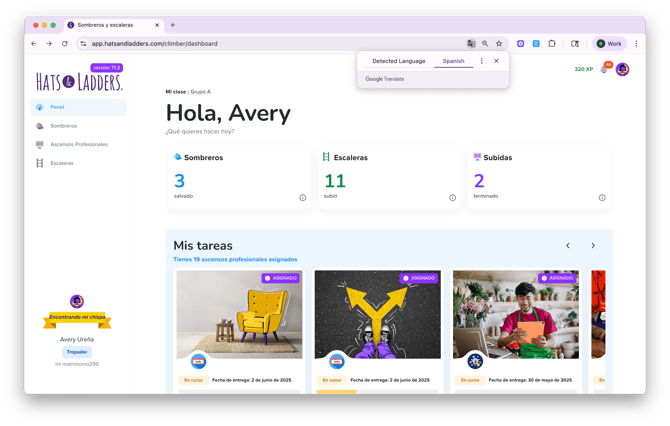
When completing Ladders, the language may revert to English. Re-enable the translation feature to continue viewing Hats & Ladders in your preferred language. As you progress, the translations should update automatically.
With Safari:
Instructions:
- Log in to your Hats & Ladders account.
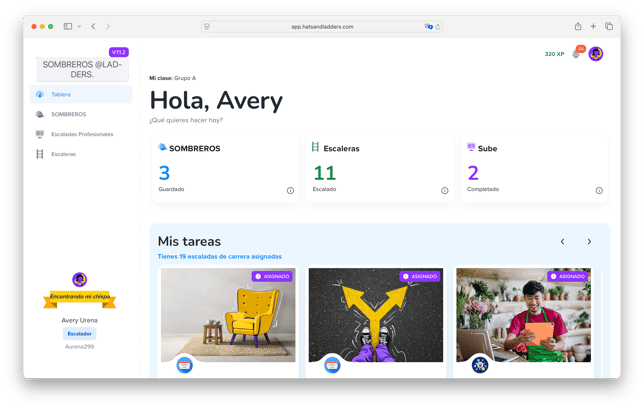
- In the top toolbar, click "View" > "Translation".
- If your preferred language is listed, select it.
- If your preferred language is not listed:
- Click "Preferred Language" to open your Mac’s language settings.
- Under "Preferred Languages", click the "+" button.
- Search for your language, select it, and click "Add".
- You will be asked if you want to change your Primary Language—this is optional and only affects your device's default settings.
- Return to Safari, go to "View" > "Translation", and select your newly added language.
- Your browser will now display Hats & Ladders in this language.
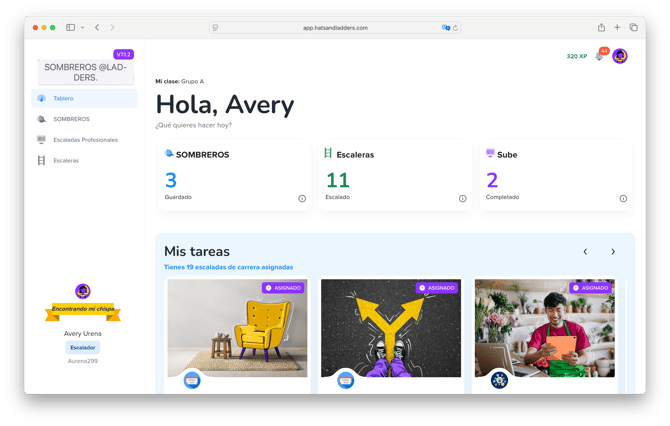
After activating translation, click the translation icon in your browser’s search bar. You can quickly toggle between languages from there.
本文章内容
翻译
您可以通过两种方式访问翻译功能,具体取决于您的浏览器。
使用 Chrome 浏览器:
操作说明:
- 登录您的 Hats & Ladders 账户。
- 在屏幕上的任意位置 右键单击,然后选择 “翻译为 [您的语言]”。
- 如果翻译没有显示为您的首选语言:
- 在搜索栏中查找 翻译图标。
- 点击 三点菜单 (⋮),然后选择 “选择其他语言”。.
- 从下拉菜单中选择您的首选语言,然后点击 “翻译”。
- 您的整个页面现在应该已翻译。

完成 Ladders 时,语言可能会恢复为英文。请重新启用翻译功能,以继续以您的首选语言查看 Hats & Ladders。随着进度,翻译应会自动更新。
使用 Safari:
操作说明:
- 登录您的 Hats & Ladders 账户。
- 在顶部工具栏,点击“显示” > “翻译”。
- 如果您的首选语言已列出,请选择它。
-
如果您的首选语言未列出:
-
-
点击 “首选语言” 打开 Mac 的语言设置。
-
在 “首选语言” 下,点击 “+” 按钮。
-
搜索您的语言,选择后点击 “添加”。
-
系统会询问您是否要更改主要语言 —— 这是可选的,仅影响设备的默认设置。
-
- 返回 Safari,依次点击 “显示” > “翻译”,然后选择您新添加的语言。
- 您的浏览器现在会以此语言显示 Hats & Ladders。

启用翻译后,点击地址栏中的翻译图标。您可以在此快速切换语言。
Traducciones
Puedes acceder a la función de traducción de dos maneras, dependiendo de tu navegador.
Con Chrome:
Instrucciones:
- Inicia sesión en tu cuenta de Hats & Ladders.
- Haz clic derecho en cualquier parte de la pantalla y selecciona "Traducir a [Tu Idioma]".
- Si la traducción no aparece en tu idioma preferido:
- Busca el icono de traducción en la barra de búsqueda.
- Haz clic en el menú de tres puntos (⋮) y selecciona "Elegir otro idioma".
- Elige tu idioma preferido en el menú desplegable y presiona "Traducir".
- Ahora, toda la página debería estar traducida.
Al completar Ladders, el idioma puede volver al inglés. Vuelve a habilitar la función de traducción para seguir viendo Hats & Ladders en tu idioma preferido. A medida que avances, las traducciones deberían actualizarse automáticamente.
Con Safari:
Instrucciones:
- Inicia sesión en tu cuenta de Hats & Ladders.
- En la barra de herramientas superior, haz clic en "Ver" > "Traducción".
- Si tu idioma preferido aparece en la lista, selecciónalo.
- Si tu idioma preferido no está en la lista:
- Haz clic en "Idioma preferido" para abrir la configuración de idioma de tu Mac.
- En "Idiomas preferidos", haz clic en el botón "+".
- Busca tu idioma, selecciónalo y haz clic en "Agregar".
- Se te preguntará si deseas cambiar tu idioma principal. Esto es opcional y solo afecta la configuración predeterminada de tu dispositivo.
-
Regresa a Safari, ve a "Ver" > "Traducción", y selecciona el idioma recién agregado.
Tu navegador ahora mostrará Hats & Ladders en este idioma.