
In This Article
What You'll Need
|
Accessing Climber Accounts
1) On your left side navigation, click Users.
2) Click Climbers.
.png?width=333&height=333&name=Untitled%20design%20(8).png) |
.svg)
|
Access Climber Account Details
3) Scroll or search for the Climber account you would like to change.
4) Click the "→" next to the Climber's name to open the account details.
.gif?width=670&height=240&name=Untitled%20design%20(10).gif)
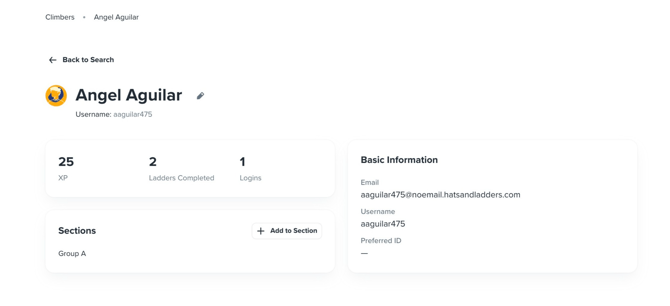
5) This is the page you encounter when you open the account details:
Edit Account Details
Climber's Name
The Climber's name is displayed at the top of the page next to their selected avatar. Click the pencil symbol next to the name to edit the climber's first and last name.
.png?width=662&height=139&name=Edit%20Climber%20Details%20form%20(1).png)
Add Climbers to New Groups / Classes
View which Groups/Classes the Climber is added to in the Groups or Classes section.
To move a climber into a new Group/Class, click "+ Add to Group/Class" and select a new Group from the drop down.
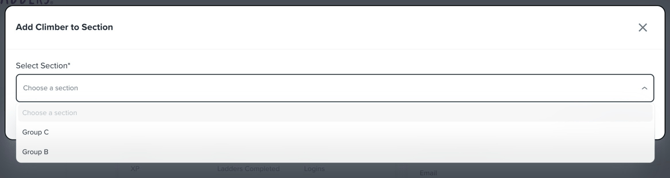
Note: Climbers can only be added to new Groups / Classes within their Site / School. Climbers accounts cannot be added to new Sites / Schools.
Walk Through Video:
Change Climber Password
1) Click Groups in the left side navigation.
2) Select the Group your climber is in.
3) Scroll or search for the climber, and click the "⋮".
.png?width=509&height=219&name=Untitled%20design%20(10).png)
4) Click Change Climber Password and generate or write a new password for you climber.
5) Press Reset and share the new password with your climber!
.png?width=670&height=154&name=Untitled%20design%20(11).png)